
Overview
What rotation does
Rotating replaces your keys in one click. Your account, customers, payments and webhook URL stay exactly as they are.
The publishable key (pk_) and the secret key (sk_) are always replaced together.
Old keys stop working the moment you confirm. Requests that still use them are rejected.
Customers, transactions, bank accounts and your webhook URL are not affected.
Old keys stop working immediately
There is no overlap between the old and the new keys. Until you paste the new keys into your integrations, payments through them will fail. Prepare everything first, rotate during a low-traffic window, and update all places right away — usually it takes about 15 minutes.
Preparation
Before you start
Five minutes of preparation makes the switch seamless for your customers.
- List every place your keys are used. Use the checklist below — the WordPress plugin, your website checkout, your server code, webhook handler, Postman, and any third-party tools.
- Make sure you can edit each of them right now — WordPress admin, hosting or server access, environment variables / secret manager, deploy pipeline.
- Pick a quiet time. Customers who are in the middle of a checkout at the moment of rotation may need to start again.
- Have a secure place for the new secret key — a password manager or your secret manager. Never send it by email or chat, and never put it into website code.
Inventory
Where your keys may be used
After the rotation, every item that applies to you must get the new key. pk_ = publishable key, sk_ = secret key.
WordPress / WooCommerce plugin
WordPress admin → wp-admin/admin.php?page=seamless-ach_gateway → Live Secret Key and Test Secret Key. The plugin uses secret keys only.
Checkout.js on your website
The publicKey value in new SEAMLESSACH({…}) on your checkout page, including custom checkout builds and authorization-only / on-demand flows.
Plaid bank-link URL or iframe
Links like dashboard.seamlesschex.com/ach/#/bank-account/{PUBLIC_KEY}/{USER_ID} that you build for customers or embed in an iframe — and any such links you have already saved or sent.
Your server code (REST API)
The Authorization: Bearer … header of every server-to-server API call: customers, funding sources, payments, invoices, payment links, subscriptions, payouts.
Your webhook handler
If your endpoint checks the Authorization header of incoming Seamless ACH webhooks, it compares it with your secret key.
Postman and testing tools
The secretKey variable of the Seamless ACH Postman collection or environment, test scripts, and API clients.
Everything else
Environment variables and .env files, secret managers, CI/CD settings, staging servers, mobile-app backends, CRM / no-code automations and agencies or developers who built your integration.
Step by step
Rotate your Live keys in the dashboard
Live keys are rotated in your regular dashboard. Sandbox keys are rotated separately — see Rotate your Sandbox keys.
-
Open the Seamless ACH API settings
Sign in at dashboard.seamlesschex.com and go to Account Settings → Seamless ACH API, or open the page directly:
dashboard.seamlesschex.com/ach/#/account/api
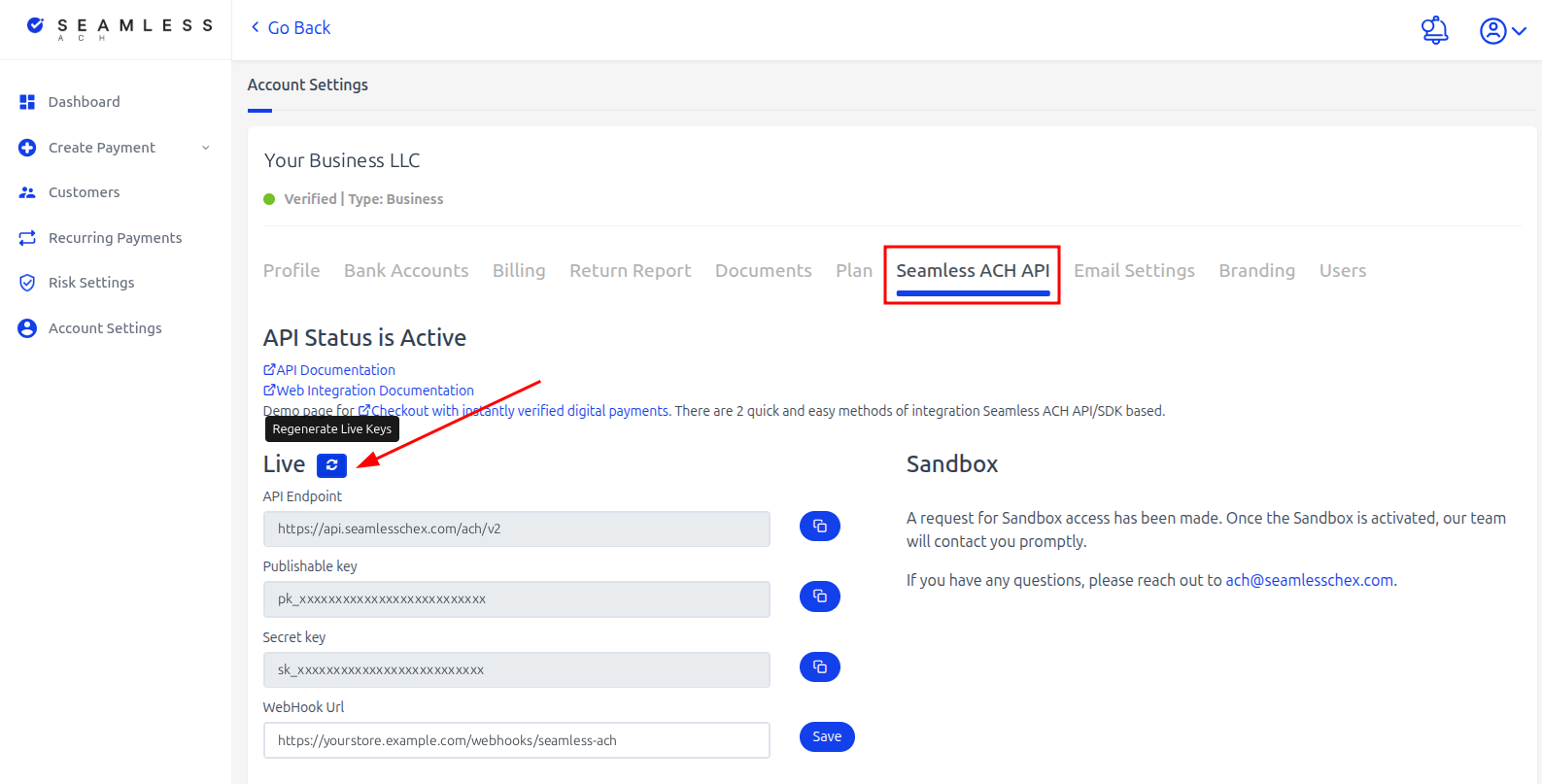
Account Settings → Seamless ACH API. The Regenerate Live Keys button is next to the Live title. Keys on the screenshot are replaced with placeholders. Tap the image to see the full page. -
Click “Regenerate Live Keys” and confirm
Click the blue refresh button next to Live (tooltip Regenerate Live Keys). A Please confirm — Update Api Keys dialog appears: click Confirm to replace the keys, or Cancel to keep the current ones.
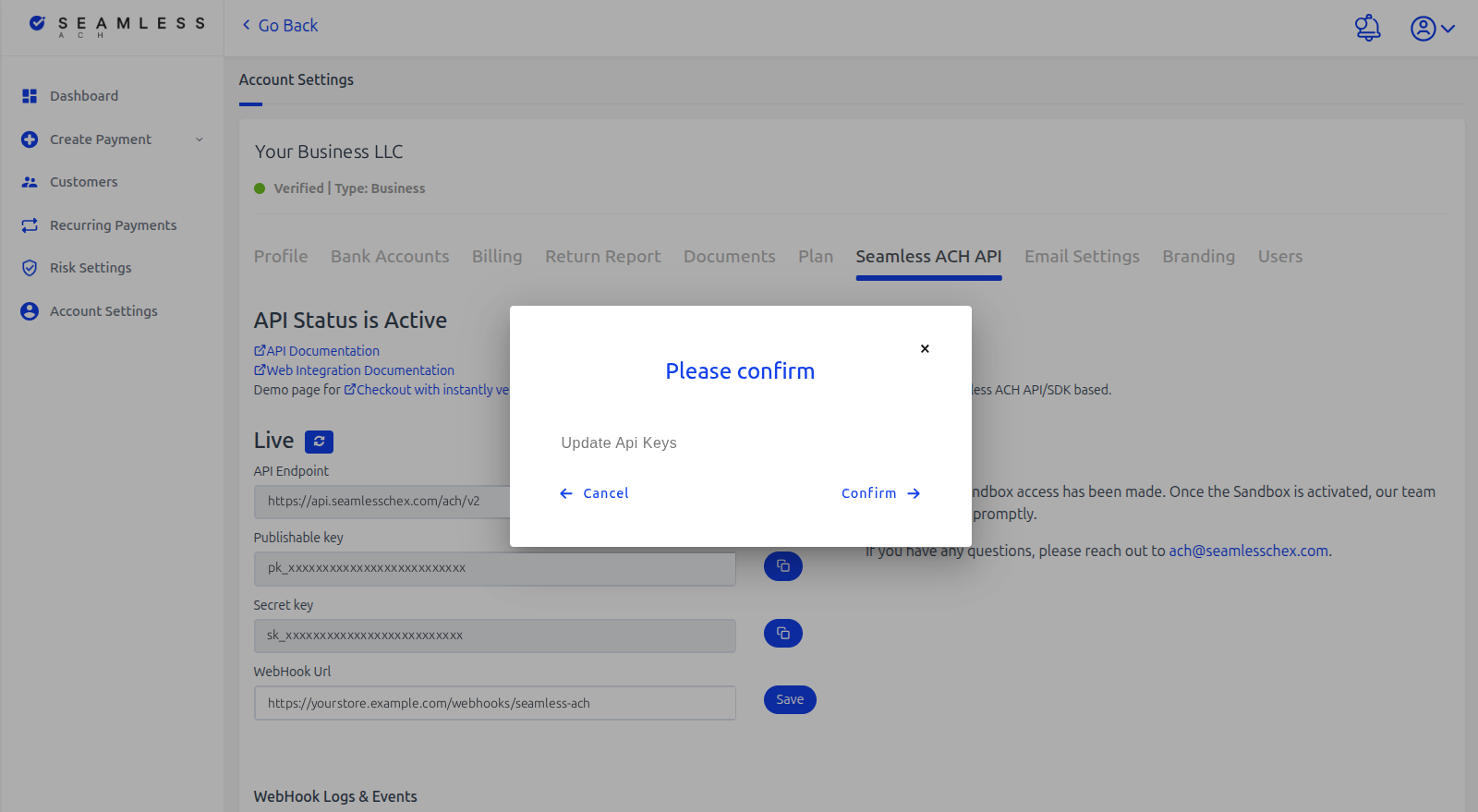
The confirmation dialog. Nothing changes until you click Confirm. Tap the image to see the full page. A green Success — Api keys Successfully Updated message appears in the top-right corner, and the Publishable key and Secret key fields now show your new keys. The API Endpoint and WebHook Url stay the same.
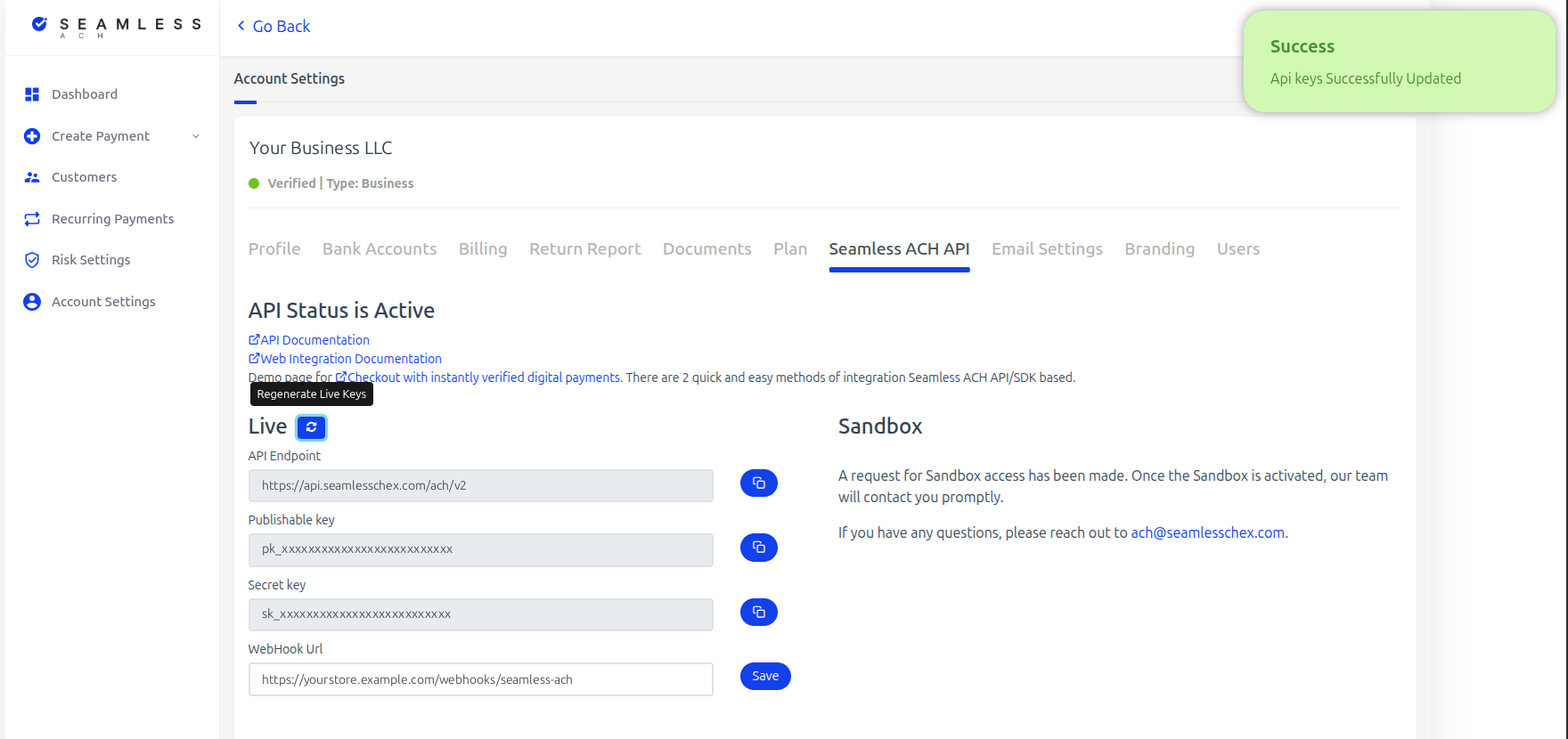
After confirming: the success message and the new keys. Keys on the screenshot are replaced with placeholders. Tap the image to see the full page. ⚠From this moment the old keys no longer work
Move straight on to the next steps.
-
Copy the new keys
The API Endpoint does not change: https://api.seamlesschex.com/ach/v2
The page shows your new Publishable key (
pk_…) and Secret key (sk_…). Use the copy button next to each field so nothing is mistyped, and store the secret key in a password manager or secret manager. -
Update every integration
Paste the new keys into each place from the inventory. Detailed instructions for each one are below.
-
Check your webhook URL
Rotation does not change your WebHook Url. Make sure it is still filled in on the same page; if you edit it, click Save and wait for the “Well done! You WebHook Url working.” message.
-
Run a test payment
Place a small test order through each integration — plugin, Checkout.js, API — and confirm that the transaction appears in your dashboard and that your webhook handler received the status update.


Repeat the same steps in Sandbox
If you use a sandbox account, rotate your sandbox keys the same way right after the live ones — see Rotate your Sandbox keys below.
After rotation
Where to replace the keys
Go through every section that applies to your setup.
-
WordPress / WooCommerce plugin secret key
- Sign in to your WordPress admin and open the Seamless ACH plugin settings:
wp-admin/admin.php?page=seamless-ach_gateway - Paste the new live secret key into Seamless ACH Live Secret Key (
sk_…). - If you also rotated sandbox keys, paste the new one into Seamless ACH Test Secret Key (
sk_test_…). - Check that Mode is set correctly (Live or Sandbox) and save the settings.
- The plugin's webhook URL does not change — no update is needed in the dashboard.
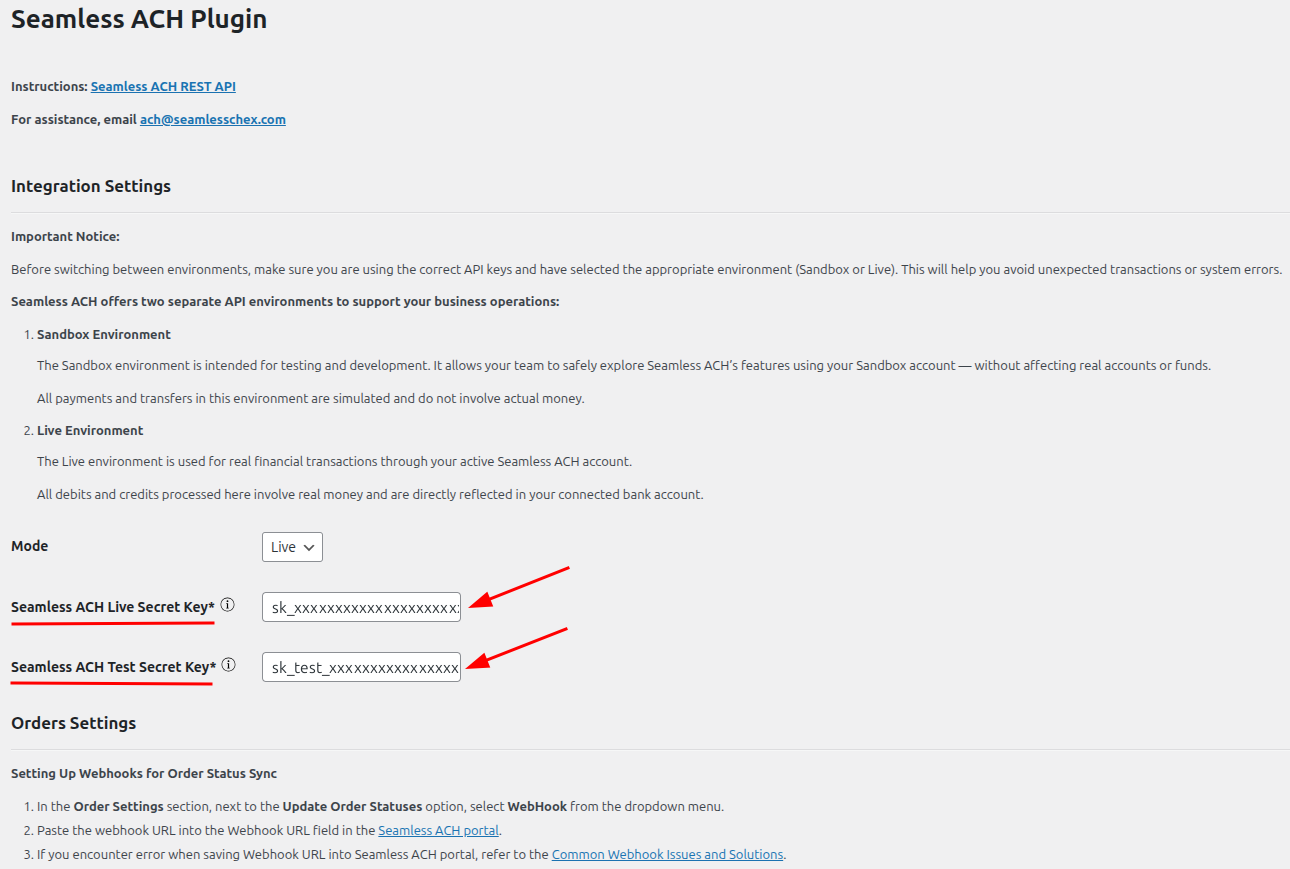
Seamless ACH plugin → Integration Settings. Only the two secret key fields need the new values. Tap the image to see the full settings page. Docs: Installation Guide — Seamless ACH x WooCommerce · Sync order statuses via webhooks
- Sign in to your WordPress admin and open the Seamless ACH plugin settings:
-
Checkout.js publishable key
Find the place where your site creates the checkout and replace the
publicKeyvalue. Use the publishable key only:var seamlessach = new SEAMLESSACH({ publicKey: 'pk_xxxxxxxxxxxxxxxxxxxxxxxxxx', // new publishable key (pk_test_… for sandbox) sandbox: false, // true together with a pk_test_ key displayMethod: 'iframe', // …the rest of your configuration stays the same });- Search your site's code and theme files for
publicKeyandpk_— the key may be in a template, a JS bundle or a tag manager. - If your site is built and deployed (React, Vue, Angular, etc.), rebuild and redeploy, then clear the CDN / browser cache.
- Make sure the SDK script is loaded from https://dev-ach.seamlesschex.com/checkoutjs/sdk-min.js.
⛔Never put the secret key into the website
Anything in the browser is visible to every visitor. Checkout.js only needs the publishable key, and requests that use a secret key from a browser are rejected.
Docs: Checkout.js Documentation · Direct Debits / Credits / Subscriptions · On-Demand Payments
- Search your site's code and theme files for
-
Plaid bank-link URL or iframe publishable key
If you send customers to the hosted bank-linking page or embed it in an iframe, the publishable key is part of the URL. Rebuild it with the new key:
https://dashboard.seamlesschex.com/ach/#/bank-account/pk_xxxxxxxxxxxxxxxxxxxxxxxxxx/{USER_ID}?successUrl={SUCCESS_URL}&cancelUrl={CANCEL_URL}- Update the code or template that builds the link and the
srcof the iframe. - Links that were already generated with the old key (in emails, SMS, saved pages) stop working — send customers a new link.
- Update the code or template that builds the link and the
-
Your server code — REST API secret key
Every server-to-server call is authorized with the secret key. Replace it where your application reads it — ideally a single environment variable or secret:
curl -X GET https://api.seamlesschex.com/ach/v2/user/{user_id} \ -H "Authorization: Bearer sk_xxxxxxxxxxxxxxxxxxxxxxxxxx" \ -H "Content-Type: application/json" # .env SEAMLESS_ACH_SECRET_KEY=sk_xxxxxxxxxxxxxxxxxxxxxxxxxx- Update every environment: production, staging, background workers, cron jobs and serverless functions.
- Restart or redeploy the services so they pick up the new value.
- Check your logs for 401 / 403 responses after the switch — they point to a place that still uses the old key.
-
Your webhook handler secret key
Seamless ACH webhook requests carry your secret API key in the
Authorizationheader. If your handler verifies that header, update the expected value to the new secret key.- For a short transition period, accept both the old and the new secret key: retries of events created before the rotation may still arrive with the previous key. Remove the old key after a few days.
- Your webhook URL itself does not change. You can see and test it on the same Seamless ACH API page.
Docs: Webhooks Overview · Set Webhook URL
-
Postman and testing tools secret key
- In Postman, open the environment (or collection variables) you use with the Seamless ACH REST API collection and update the
secretKeyvalue. - Update automated tests, monitoring checks and local developer configs.
- Do not commit keys to Git — if a key was ever committed, consider it exposed and rotate it.
- In Postman, open the environment (or collection variables) you use with the Seamless ACH REST API collection and update the
-
Everything else
- Secret managers and environment variables — AWS Secrets Manager, Google Secret Manager, Vault, Heroku / Vercel / Netlify settings, Docker and Kubernetes secrets.
- CI/CD — GitHub Actions / GitLab CI secrets and deploy pipelines.
- Third-party tools and automations — CRM, Zapier / Make, accounting or e-commerce connectors where you pasted a Seamless ACH key.
- Developers and agencies — if someone else maintains your integration, send them the new key through a secure channel, not email or chat.

Testing environment
Rotate your Sandbox keys
Do exactly the same rotation in your sandbox account. Sandbox keys (pk_test_ / sk_test_) are separate from your live keys, so rotating live keys does not change them — and the other way around.
-
Sign in to your sandbox account
On the Seamless ACH API page, click Sign In in the Sandbox block, or sign in at sandbox.seamlesschex.com/ach.
-
Open the Seamless ACH API settings
Go to Account Settings → Seamless ACH API:
-
Click “Regenerate Sandbox Keys” and confirm
Click the refresh button, then Confirm in the same Please confirm — Update Api Keys dialog. Wait for the green Success — Api keys Successfully Updated message. The old sandbox keys stop working immediately.
-
Copy the new sandbox keys
Copy the new Publishable key (
pk_test_…) and Secret key (sk_test_…). The sandbox API Endpoint does not change: https://sandbox.seamlesschex.com/ach/v2 -
Update your test integrations
- WordPress plugin → Seamless ACH Test Secret Key (
sk_test_…) at wp-admin/admin.php?page=seamless-ach_gateway - Test checkout →
publicKey: 'pk_test_…'withsandbox: true - Sandbox Plaid bank-link URLs, staging servers, test webhook handler and Postman → new
pk_test_/sk_test_
- WordPress plugin → Seamless ACH Test Secret Key (
-
Run a test payment in sandbox
Place a test order (sandbox amounts must be under $99.99) and confirm that it appears in your sandbox dashboard and that your test webhook handler received the update.
Don't see sandbox keys?
If the Sandbox block says that access has been requested, sandbox is not activated for your account yet — there is nothing to rotate there.
Good to know
Publishable vs. secret key
Use each key only where it belongs.
| Key | Prefix | Where it belongs | Never put it |
|---|---|---|---|
| Publishable — Live | pk_ | Checkout.js, Plaid bank-link URL | — it is meant for the browser |
| Secret — Live | sk_ | Your server, WordPress plugin settings, secret manager | Website code, JS bundles, mobile apps, email, chat, Git |
| Publishable — Sandbox | pk_test_ | Test checkout with sandbox: true | Your live checkout |
| Secret — Sandbox | sk_test_ | Staging server, plugin Test Secret Key, Postman | Website code, public repositories |
If a secret key was ever exposed
If your secret key was ever placed in website code, shared by email or chat, or committed to a repository, rotate it as soon as possible — the old key is invalidated the moment you rotate.
FAQ
Frequently asked questions
Quick answers to the questions that come up most often during key rotation.
Will my old keys keep working for a while?
No. The old publishable and secret keys stop working as soon as you confirm the rotation. That's why we recommend preparing all places in advance.
Can I rotate only the secret key?
No. Rotation always issues a new publishable key and a new secret key together, so both need to be updated.
Does my webhook URL change?
No. Your webhook URL stays the same. If your webhook handler checks the secret key in the Authorization header, update the expected key (see Your webhook handler).
Will my customers, transactions or bank accounts be affected?
No. Your data stays exactly as it is. Only requests that still use the old keys will be rejected until you update them.
What happens to customers who are paying at the moment of rotation?
A checkout that was opened with the old publishable key may fail and the customer may need to start again. Rotate during a quiet time to minimize this.
I use only the WordPress plugin. What do I need to change?
Only the Live Secret Key (and the Test Secret Key, if you rotated sandbox keys) in the plugin settings. If your site also loads Checkout.js separately, update its publishable key too.
How do I know I updated everything?
Run a test payment through each integration and watch your server logs for 401 / 403 errors for a day. Any such error points to a place that still uses the old key.
Need help with the rotation?
Contact us at [email protected] or call 888-998-2439.